Upgrade to Pro
How to buy Pro, how to see that it is active, and what to do if it does not show up after you pay.
Pro is a one-time purchase of $899, paid with PayPal. You buy it on the Pricing page. This page covers the purchase, the check afterwards, and what to do when something goes wrong. For what Pro includes, see Free and Pro.
Buy Pro
-
Sign in. You need an account before you buy, because the Pro licence is linked to it. If you do not have one, see Account. On the Pricing page, Buy Pro — sign in first takes you to the sign-in page.
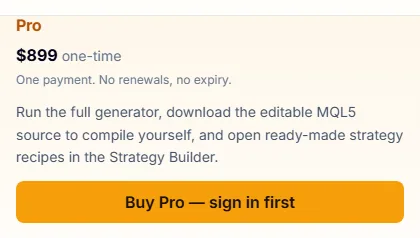
The Pro plan card when you are not signed in. -
Open the Pricing page while you are signed in. The PayPal buttons replace the sign-in button.
-
Tick the consent box. It reads: “I request immediate access to the paid Strategy Builder features and I understand that I lose my right of withdrawal once those features are activated on my account.” The PayPal button stays disabled until you tick it.
-
Pay with PayPal. The page says Confirming your payment… and then confirms the purchase.
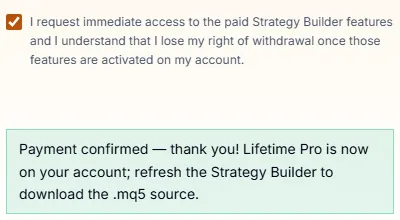
The consent box and the confirmation message. The PayPal button itself is not shown here.
Under EU and UK consumer law, digital content that is supplied immediately is exempt from the statutory cooling-off period only if you ask for the immediate access and accept that you lose the right of withdrawal. That is why the box is there. If you want to keep that right, do not complete the purchase.
The price is in US dollars and is the total you pay. Your receipt stays in your PayPal account.
Pro is active at once
Pro starts on your account when the payment is confirmed. You do not need to sign out and sign in again. The confirmation says: “Payment confirmed — thank you! Lifetime Pro is now on your account; refresh the Strategy Builder to download the .mq5 source.” Reload the Strategy Miner or the Strategy Builder page so that it reads your new plan.
Check that Pro is active
- In the Miner and in the Builder, a PRO badge appears in the header. In the Miner, the Upgrade button disappears.
- On your account page, the Overview tab shows the plan Pro.
- The Plan tab shows the plan Lifetime, the status Active, your purchase ID and the payment in your billing history.
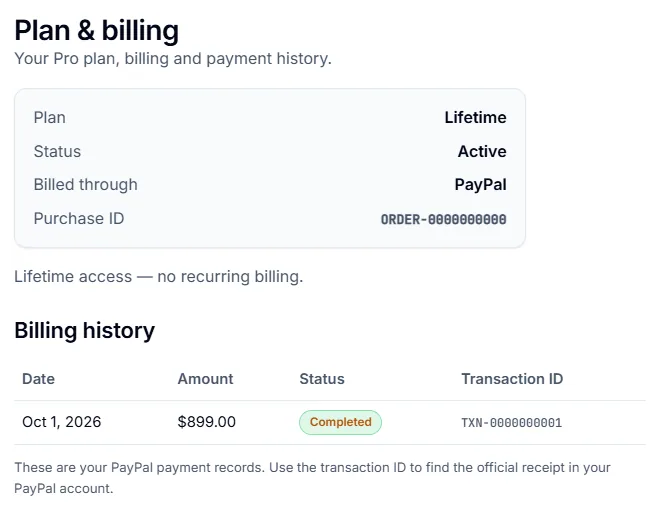
If Pro does not show up
- Reload the page.
- If the page showed “Your payment was approved but we couldn’t confirm it automatically”, the payment went through but the site could not confirm it. Do not pay again. Contact support with your PayPal receipt. The message says that support will unlock Pro.
- If you see “You already have lifetime Pro access”, your account already has Pro. You do not need a second purchase.
Other messages on the Pricing page:
| Message | What to do |
|---|---|
| Please tick the box confirming immediate access before continuing. | Tick the consent box, then use the PayPal button. |
| Your session expired. Please sign in again and retry. | Sign in again and repeat the purchase. |
| We couldn’t start the checkout. | Try again in a moment. If it keeps failing, contact support. |
| Your payment didn’t go through — your card or bank declined it. You have not been charged. Please try again with another payment method. | Nothing was charged. PayPal returns you to the choice of payment method; pick another card, bank account or PayPal balance. If it does not, press the PayPal button again. |
| The payment form could not be loaded. | Turn off content blockers for the page and reload it. |
Refunds
Pro is not refunded once you have bought it, except where the law requires a refund. The Pricing page gives one example: being charged more than once for the same licence. The full terms are in the Refund Policy.