Projects
Save flows to your account, find them on the dashboard, and understand autosave and local storage.
A project is a saved flow. Projects are stored in your account, so you can open them from any browser. Saving projects does not need Pro.
Sign in to save
Cloud saving needs a signed-in account.
- Signed in: you start on the dashboard. + New Project creates a project, and the flow is saved to your account. The header shows the project name and ← Projects.
- Not signed in: the Builder keeps your work in this browser, and the canvas says “Your work is saved automatically in this browser.” Clearing the site data in the browser removes it. To keep a flow somewhere else, save it as a JSON file; see Canvas basics.
If you sign in and the browser holds a flow with blocks, the Builder saves it to your account as a new project and opens it, and a message says “Saved to server”. If that save fails, the dashboard stays and shows “Local flow data found. Save it to the server?” with Save and Dismiss buttons.
The dashboard
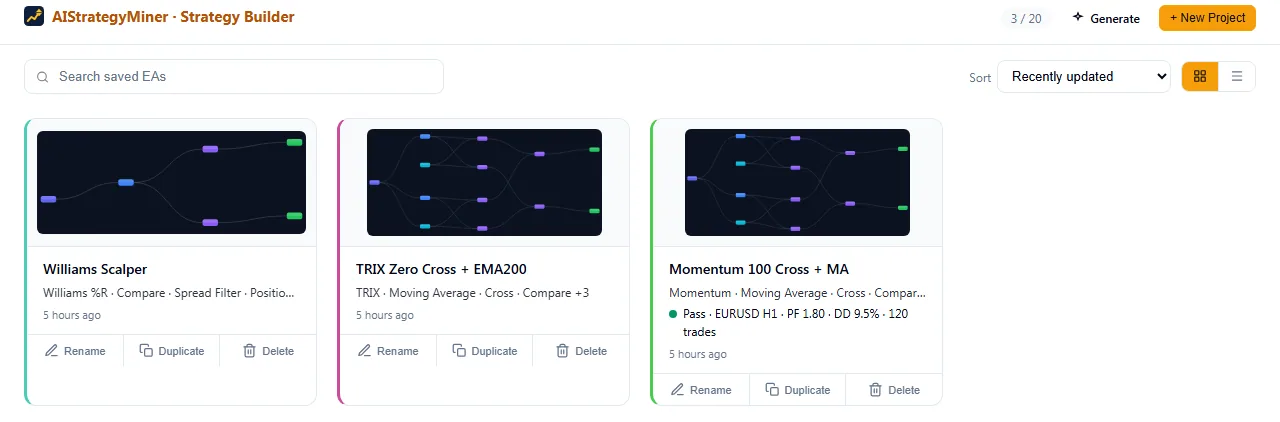
The dashboard lists your projects. Open it with ← Projects in the header. The number of projects you have is shown at the top right, in the form “N / limit”.
| Control | What it does | Values |
|---|---|---|
| Search saved EAs | Filters the list by name. | Text. When nothing matches, the list says “No matching EAs” and Clear search resets it. While you search, the count shows “shown / total”. |
| Sort | Orders the list. | Recently updated, Least recently updated, Name A–Z, Name Z–A, Newest first. |
| View | Switches the layout. | Grid view or List view. |
| + New Project | Creates a project and opens an empty canvas. The Builder names it “My EA 1”, “My EA 2” and so on. If you then load a template while the name is still automatic, the project takes the template name. | |
| Generate | Opens the Strategy Miner. |
Each project card shows a thumbnail of the flow, a one-line summary of its blocks, the result of the last Measure (a verdict, the symbol and timeframe, then “PF x · DD x · n trades”), and when it was last updated. If you changed the flow after measuring, the card says “Changed since last measured — measure again”.
Open, rename, duplicate and delete
- To open a project, click its card.
- To rename it, use Rename on the card, or click the project name in the Builder header.
- To copy it, use Duplicate. The copy is a separate project.
- To remove it, use Delete. The window “Delete project?” asks you to confirm, and deleting cannot be undone.
A link of the form /strategy-builder?open=<project id> opens a project directly when you are signed in.
Save and autosave
- Ctrl+S saves the draft in this browser at once and shows “Saved”. When you are signed in and a saved project is open, it also saves the project to your account. When you are not signed in, the first Ctrl+S also opens a sign-in prompt. The header Save button does something else: it downloads the flow as
ea-flow.json(see Canvas basics). It does not save to your account. - While you are signed in and a saved project is open, the Builder saves a changed flow automatically every 30 seconds.
- If the saved copy was changed somewhere else, for example in another tab, the Builder loads the latest saved version and shows a message. Then make your change again.
Move a flow out of your account
Use Export in the ⋯ menu to download the flow as a JSON file, and Import to load one. The file holds the blocks, connections and settings. See Canvas basics.