Account
Create an account, confirm your email, sign in with Google, choose a display language, and delete your account.
You can use the Builder canvas and the Miner demo without an account. You need an account to measure a flow in the Builder, to save projects, and to buy Pro. Your Pro licence is linked to your account.
Create an account
-
Open the registration page, or click Create one on the sign-in page.
-
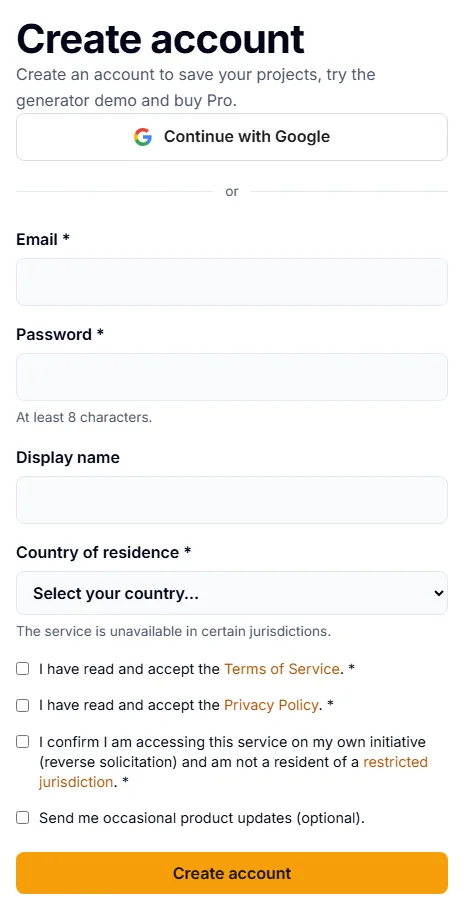
Fill in the form.
Field Notes Email Required. Password Required. At least 8 characters. Display name Optional. Country of residence Required. The service is not available in some jurisdictions. Terms of Service Required. Tick the box to accept. Privacy Policy Required. Tick the box to accept. Reverse solicitation Required. You confirm that you use the service on your own initiative and that you are not a resident of a restricted jurisdiction. Product updates Optional. -
Click Create account.
Confirm your email
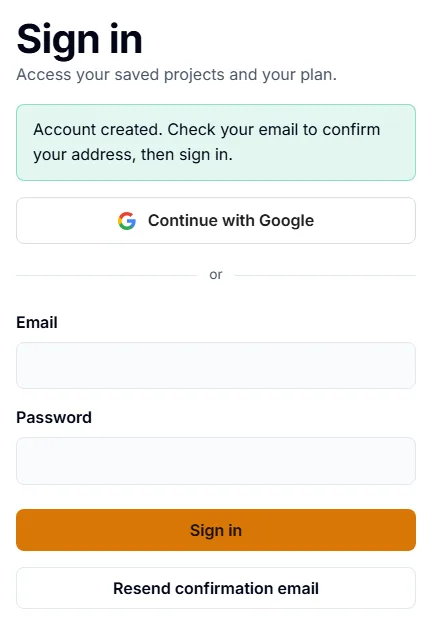
After you register, the site sends a confirmation email. Open the link in that email, then sign in.
Some features need a confirmed email. Measuring a flow in the Builder is one of them.
If the email does not arrive, check your spam folder. Then click Resend confirmation email. The sign-in page shows this button when you try to sign in with an address that is not confirmed yet. Your account Settings have the same button.
Sign in with Google
The sign-in page and the registration page have a Continue with Google button.
- Your Google account must have a confirmed email address.
- If you register with Google, the site still asks for your country and for the same consents as the registration form.
- An account made with Google has no password. In Settings you can use Set a password to sign in with your email as well.
- If your email is already linked to a different Google account, the site shows an error. Sign in with your password, or contact support.
Your account page
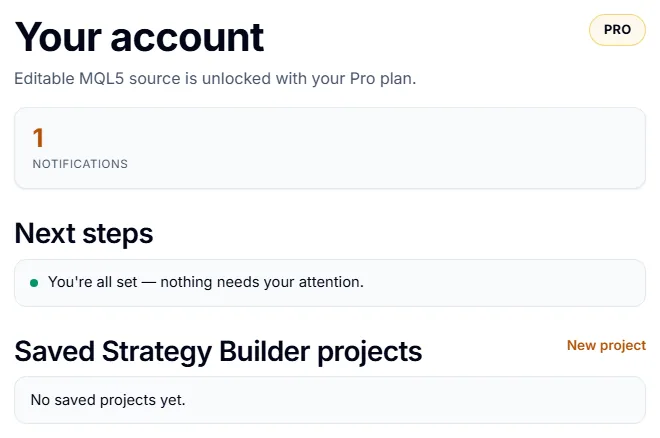
The account page has four tabs.
| Tab | What it shows |
|---|---|
| Overview | Your plan (Canvas or Pro), the next steps, and your saved Builder projects. |
| Notifications | Messages about your plan and account. |
| Plan | Your plan, its status, your purchase ID and your payment history with PayPal transaction IDs. |
| Settings | Profile (display name, country, product updates), password, email confirmation, and account deletion. |
Display language
| Tool | Languages |
|---|---|
| Strategy Miner | 16 languages. Use the language menu in the header. |
| Strategy Builder | English and Japanese are fully translated. In the other 14 languages the Builder shows guidance only: the sign-in prompt, the export notes and the steps after a download. The rest stays in English. |
| This documentation | English only. |
The sign-in, registration and account pages follow the site language.
Delete your account
- Open your account page and choose Settings.
- In Delete account, enter your password. If you signed in with Google and have no password, type your email address instead.
- Click Delete my account and confirm.
Deleting an account permanently deletes the account and all associated data. You cannot undo it. Pro access is tied to the account, so a deleted account has no Pro access. See Data & privacy for what is stored.