Quickstart
Run a search in the free demo, open a candidate in the Strategy Builder, and export it to MetaTrader 5 to check it in the Strategy Tester.
This page walks through one pass from a search to a file you can run in MetaTrader 5. The first part works without an account. The second and third parts need Pro.
- The Strategy Miner searches combinations of Builder blocks on past price bars. The search runs in your browser.
- 8 symbols are built in, on these timeframes: M15, M30, H1, H4, D1.
- This page describes how the software works. It is not investment advice, and past results do not guarantee future results.
Try the demo (free)
The demo shows a sample result that was prepared in advance for the Symbol and Timeframe you choose. Nothing is searched in your browser. It shows how many candidates survive each check, but not what the candidates are.
-
Open the Strategy Miner. If you are not signed in with a Pro account, a note at the top says Sample view.
-
Leave Symbol, Timeframe, Period (years) and Direction at their defaults, or pick another Symbol and Timeframe. In the demo, the sample was prepared with fixed settings, and Direction and the entry node families do not change it. Trial limit, Period (years), and the values under Advanced (Candidates to keep, Minimum trades) are fixed.
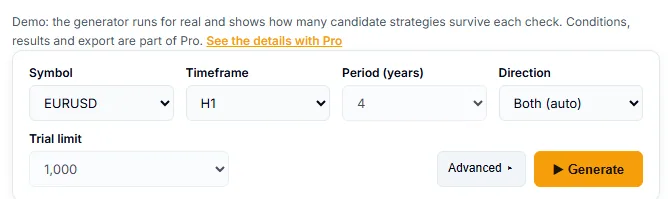
Demo settings. Period (years) and Trial limit are fixed in the demo. -
Click Generate. A progress bar shows how many trials are done and how many candidates have been found so far. Cancel stops the run.
-
Read the result.
- The summary line says how many candidate strategies survived the checks, out of how many trials.
- The Checks table lists, for each check, how many Passed and how many were Dropped. The checks include Search period (IS), Duplicates removed, Later period (OOS) and Other symbols.
- Each Candidate # card shows a tick or a cross for each check. The conditions and the results of a candidate are not shown in the demo.
- If no candidate survives, the demo says so. Click Generate again, or pick another Symbol or Timeframe.
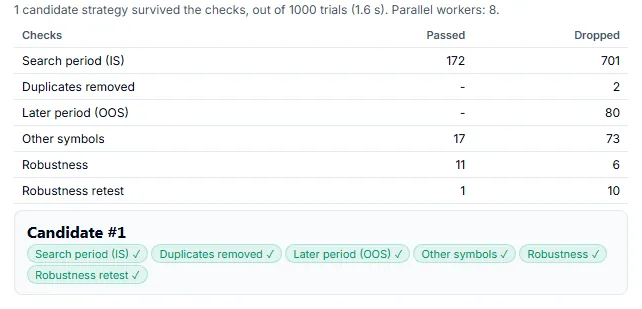
Demo result. The counts change from run to run.
A rule that fits past data often fits it by chance. The result is an approximate backtest, not a definitive result.
Open a candidate in the Builder (Pro)
Pro shows the candidates, keeps them, and lets you open them in the Strategy Builder. Pro is a one-time purchase ($899); see Pricing.
-
Sign in with your Pro account. A PRO badge appears in the header of the Miner and the Upgrade button goes away.
-
Choose your settings and click Generate. The fields that are fixed in the demo can be changed in Pro.
-
When the run ends, the candidates are saved to your Vault automatically. A line such as “Saved 4 to your vault (stored on your account).” confirms it. The number is how many candidates survived, up to Candidates to keep. The vault keeps up to 10,000 strategies per account.
-
In the Vault table, tick the checkbox at the start of one row. The bar above the table shows 1 selected.
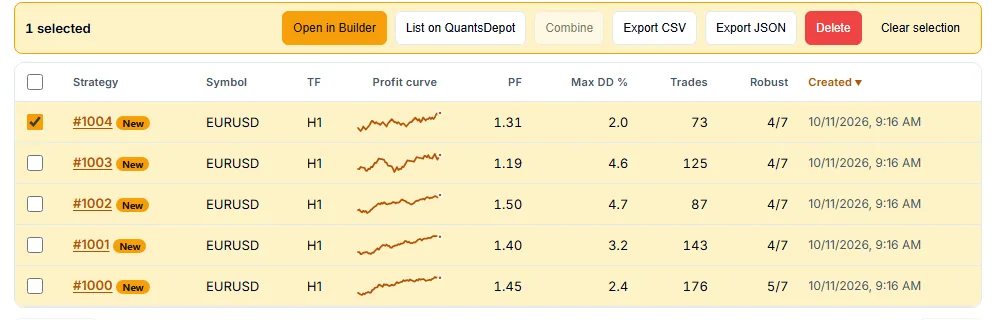
One strategy selected in the Vault (Pro). -
Click Open in Builder. It is available when exactly one strategy is selected. You can also click the strategy’s number (such as
#12) to open its detail card, which has its own Open in Builder button.
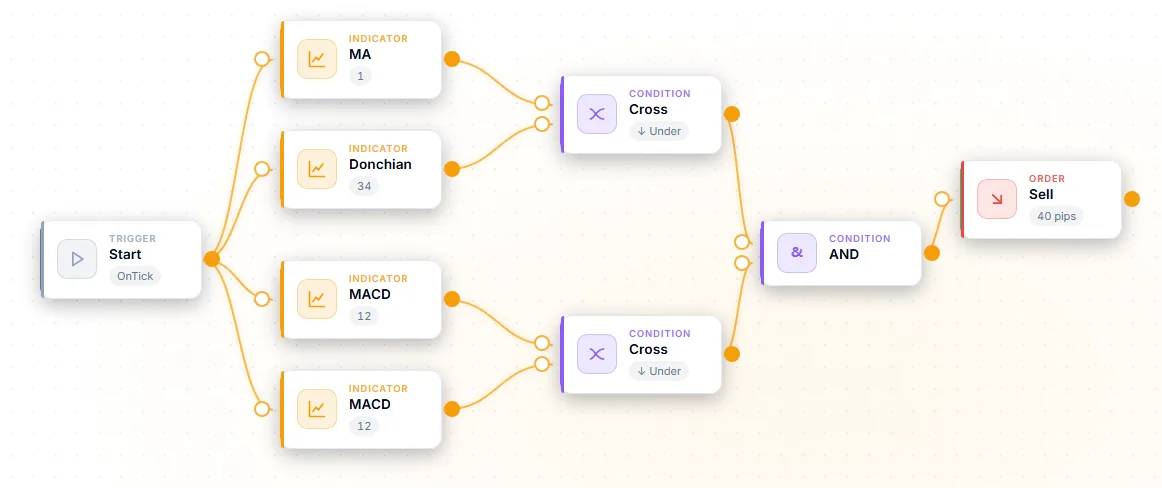
The Strategy Builder opens with the strategy laid out as a flow of blocks on the canvas. You can change blocks and settings there like in any other flow.
Export to MT5 and check it in the Strategy Tester (Pro)
The Builder can export to 5 targets. This page uses MetaTrader 5.
-
In the Builder toolbar, choose MT5 (MQL5) among the export buttons. The Builder remembers your choice in this browser.

Choose MT5 (MQL5), then click Download .mq5. -
Click Download .mq5. The Builder saves
EA_Builder.mq5and shows a dialog with the steps below. If a block cannot be exported to the chosen target, the Builder says so instead of leaving it out.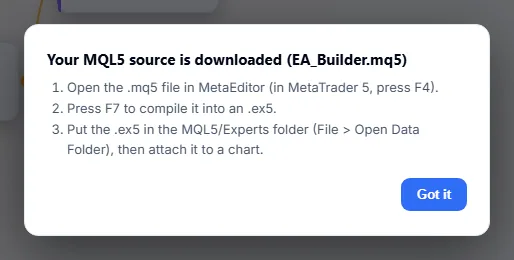
The steps dialog after Download .mq5. -
Open the
.mq5file in MetaEditor (in MetaTrader 5, press F4). -
Press F7 to compile it into an
.ex5. -
Put the
.ex5in theMQL5/Expertsfolder (in MetaEditor or MetaTrader 5, File > Open Data Folder). If you compiled a file that is already insideMQL5/Experts, the.ex5is already there. -
Open the Strategy Tester in MetaTrader 5 (View > Strategy Tester, or Ctrl+R). Select the compiled EA, the same symbol and timeframe as the strategy was checked under, and a date range.
At the top of the .mq5 file, a comment block headed VALIDATION SETTINGS lists what the strategy was checked under, including the symbol, the timeframe and the period on the line that starts with Checked under:. The line Match with the platform tester: not verified is there on purpose.
Expect the Strategy Tester numbers to differ from the numbers in the Miner. The Miner works on its own price bars with an approximate backtest. MetaTrader 5 uses your broker’s price history and trading conditions.
Next steps
- Learn what each part of a search does: Strategy Miner.
- Change a candidate and measure it: Strategy Builder.
- Choose another target or read the limits of an export: Export.
- Let your own AI set up searches and flows: AI (MCP).
- Read Core concepts before you rely on a number.
- If something goes wrong, see Troubleshooting.
- Go back to the Docs home.
- Open the Strategy Miner or the Strategy Builder.
- See what Free and Pro include on the Pricing page.